Back to Blog
How To

How to Use ChatGPT to Write an Excel Script for Construction Spreadsheets

Use ChatGPT and Excel Office Scripts to clean up routine construction spreadsheets—bid forms, punch lists, tracking logs, and analysis worksheets. Download the practice workbook, paste the script, run it on a copy, and iterate.

12 min read
How to Use ChatGPT to Write an Excel Script for Construction Spreadsheets - Use ChatGPT and Excel Office Scripts to clean up routine construction spreadsheets—bid forms, punch

If you regularly live in Excel on a jobsite or in the office, you already know the problem: merged cells, mystery columns, inconsistent headers, and blanks that should have been filled in. That shows up on bid forms, punch lists, analysis worksheets, tracking logs, and dozens of other routine construction spreadsheets—not just estimating tabs.

The fix is usually boring office work—normalize headers, flag blanks, apply a few formatting rules. An Office Script in Excel can do that repeatable cleanup for you, and ChatGPT is good at drafting the script so you don’t have to write the code from scratch.

This how-to walks through one practical pattern on a sample bid tab: download a messy practice workbook, paste in a ready-made Office Script, run it on a copy, review the output, then use ChatGPT to tweak the script for the sheets your team actually uses.

What is an Office Script? A small TypeScript automation that runs inside Excel for the web from the Automate tab. It is not a macro and it does not use VBA. You paste the code into a script editor in the browser, save it, and click Run.

What you need

  • Excel for the web with access to Automate (Office Scripts). Your Microsoft 365 admin may need to enable it.
  • A copy of the workbook you want to clean up. Never run a new script on the only copy.
  • An AI assistant your company allows—ChatGPT, Claude, or Gemini—using each provider’s latest coding-focused model (not a general chat default). Do not paste confidential bid numbers into a model your policy does not permit.

Why use ChatGPT for this

Office Scripts use TypeScript against Excel’s ExcelScript API. You can read Microsoft’s docs and write the calls by hand. Most field and office teams should not have to. ChatGPT is decent at scaffolding the script, looping rows, and suggesting formatting. It is not reliable at guessing your exact column layout or getting every boundary case right on the first try. Treat every generated script as draft code until you run it on a copy and read the output.

Step 1: Download the practice workbook

Download Example Bid Tab — a fictional .xlsx practice file with a sheet named Bid Tab - Messy that matches the script below. The workflow applies to any similar cleanup job on bid forms, punch lists, logs, or analysis sheets you already maintain in Excel.

If your browser opens it in Excel Online instead of saving to disk, right-click the link → Save link as…. Treat this file as practice data, not a live bid package.

Step 2: Open the workbook in Excel for the web

  1. Sign in to Excel for the web (Microsoft 365).
  2. Open the downloaded workbook (plan-north-messy-construction-bid-tab.xlsx).
  3. Click the Automate tab in the ribbon.
  4. Choose New Script.

A code editor opens on the right with a default template (function main(workbook: ExcelScript.Workbook) { ... }).

Step 3: Paste and run the Office Script

Copy the full script below using the Copy button in the top-right of the code block. The whole script is one block—do not try to copy it section by section.

Excel Office Script (TypeScript)
Paste into Excel for the web → Automate → New Script
function main(workbook: ExcelScript.Workbook) {
    const sourceSheetName = "Bid Tab - Messy";
    const cleanSheetName = "Clean Bid Tab";

    const sourceSheet = workbook.getWorksheet(sourceSheetName);
    if (!sourceSheet) {
        throw new Error(`Could not find a worksheet named "${sourceSheetName}".`);
    }

    const oldCleanSheet = workbook.getWorksheet(cleanSheetName);
    if (oldCleanSheet) {
        oldCleanSheet.delete();
    }

    const cleanSheet = sourceSheet.copy(ExcelScript.WorksheetPositionType.after, sourceSheet);
    cleanSheet.setName(cleanSheetName);
    cleanSheet.activate();

    const usedRange = cleanSheet.getUsedRange();
    usedRange.getFormat().getFill().clear();
    usedRange.getFormat().getFont().setColor("#111827");
    usedRange.getFormat().getFont().setName("Aptos");
    usedRange.getFormat().getFont().setSize(10);
    usedRange.getFormat().setWrapText(false);

    // Keep the finished view simple and avoid opening on a far-right cell.
    cleanSheet.getFreezePanes().unfreeze();

    // Rebuild the title area.
    cleanSheet.getRange("A1:K3").unmerge();

    cleanSheet.getRange("A1:K1").merge(false);
    cleanSheet.getRange("A1").setValue("Northline School Renovation - Clean Bid Tab");

    cleanSheet.getRange("A2:K2").merge(false);
    cleanSheet.getRange("A2").setValue(
        "Fictional training example | Interior scope bid comparison | Review all formulas before relying on output"
    );

    cleanSheet.getRange("A3:K3").merge(false);
    cleanSheet.getRange("A3").setValue(
        "Script output: cleaned formatting, restored formulas, highlighted low bid values, and flagged missing bid cells."
    );

    const titleRange = cleanSheet.getRange("A1:K1");
    titleRange.getFormat().getFill().setColor("#0F2942");
    titleRange.getFormat().getFont().setColor("#FFFFFF");
    titleRange.getFormat().getFont().setBold(true);
    titleRange.getFormat().getFont().setSize(16);
    titleRange.getFormat().setHorizontalAlignment(ExcelScript.HorizontalAlignment.center);
    titleRange.getFormat().setVerticalAlignment(ExcelScript.VerticalAlignment.center);
    titleRange.getFormat().setRowHeight(30);

    const subtitleRange = cleanSheet.getRange("A2:K3");
    subtitleRange.getFormat().getFill().setColor("#EAF4FB");
    subtitleRange.getFormat().getFont().setColor("#1E3A5F");
    subtitleRange.getFormat().setWrapText(true);
    subtitleRange.getFormat().setHorizontalAlignment(ExcelScript.HorizontalAlignment.center);
    subtitleRange.getFormat().setVerticalAlignment(ExcelScript.VerticalAlignment.center);
    subtitleRange.getFormat().setRowHeight(24);

    // Standardize table headers.
    const headerRange = cleanSheet.getRange("A5:K5");
    headerRange.getFormat().getFill().setColor("#1E3A5F");
    headerRange.getFormat().getFont().setColor("#FFFFFF");
    headerRange.getFormat().getFont().setBold(true);
    headerRange.getFormat().setWrapText(true);
    headerRange.getFormat().setHorizontalAlignment(ExcelScript.HorizontalAlignment.center);
    headerRange.getFormat().setVerticalAlignment(ExcelScript.VerticalAlignment.center);
    headerRange.getFormat().setRowHeight(32);

    // Clean up header text.
    cleanSheet.getRange("A5:K5").setValues([[
        "Scope Item",
        "Spec Ref",
        "Unit",
        "Qty",
        "Budget Unit Cost",
        "Budget Total",
        "Alpha Interiors",
        "Blue Ridge",
        "Carolina Ceilings",
        "Low Bid",
        "Notes"
    ]]);

    // Restore formulas for budget totals and low bids.
    cleanSheet.getRange("F6:F16").setFormulaR1C1("=RC[-2]*RC[-1]");
    cleanSheet.getRange("J6:J16").setFormulaR1C1("=IF(COUNT(RC[-3]:RC[-1])=0,\"\",MIN(RC[-3]:RC[-1]))");

    cleanSheet.getRange("F17:I17").setFormulaR1C1("=SUM(R[-11]C:R[-1]C)");
    cleanSheet.getRange("J17").setFormula("=MIN(G17:I17)");

    cleanSheet.getRange("F18").setFormula("=D18*E18");
    cleanSheet.getRange("J18").setFormula("=IF(COUNT(G18:I18)=0,\"\",MIN(G18:I18))");

    // Apply number formats.
    cleanSheet.getRange("D6:D18").setNumberFormat("#,##0");
    cleanSheet.getRange("E6:J18").setNumberFormat("$#,##0");

    // Clean and format the main table.
    const tableRange = cleanSheet.getRange("A5:K18");

    const borderIndexes = [
        ExcelScript.BorderIndex.edgeTop,
        ExcelScript.BorderIndex.edgeBottom,
        ExcelScript.BorderIndex.edgeLeft,
        ExcelScript.BorderIndex.edgeRight,
        ExcelScript.BorderIndex.insideHorizontal,
        ExcelScript.BorderIndex.insideVertical
    ];

    borderIndexes.forEach((borderIndex) => {
        const border = tableRange.getFormat().getRangeBorder(borderIndex);
        border.setStyle(ExcelScript.BorderLineStyle.continuous);
        border.setColor("#D9E2EC");
        border.setWeight(ExcelScript.BorderWeight.thin);
    });

    cleanSheet.getRange("A6:B18").getFormat().setHorizontalAlignment(ExcelScript.HorizontalAlignment.left);
    cleanSheet.getRange("C6:D18").getFormat().setHorizontalAlignment(ExcelScript.HorizontalAlignment.center);
    cleanSheet.getRange("E6:J18").getFormat().setHorizontalAlignment(ExcelScript.HorizontalAlignment.right);
    cleanSheet.getRange("K6:K18").getFormat().setHorizontalAlignment(ExcelScript.HorizontalAlignment.left);

    cleanSheet.getRange("A6:A18").getFormat().setWrapText(true);
    cleanSheet.getRange("K6:K18").getFormat().setWrapText(true);

    // Alternating light fill for body rows.
    for (let row = 6; row <= 16; row++) {
        const rowRange = cleanSheet.getRange(`A${row}:K${row}`);
        rowRange.getFormat().getFill().setColor(row % 2 === 0 ? "#F8FAFC" : "#FFFFFF");
    }

    // Highlight missing bid cells and row-level low bid values.
    for (let row = 6; row <= 16; row++) {
        const bidCells = [
            cleanSheet.getRange(`G${row}`),
            cleanSheet.getRange(`H${row}`),
            cleanSheet.getRange(`I${row}`)
        ];

        const bidValues = bidCells
            .map((cell) => cell.getValue())
            .filter((value) => typeof value === "number") as number[];

        const lowBid = bidValues.length > 0 ? Math.min(...bidValues) : null;

        bidCells.forEach((cell) => {
            const value = cell.getValue();

            if (value === "" || value === null) {
                cell.setValue("MISSING");
                cell.getFormat().getFill().setColor("#FCE4D6");
                cell.getFormat().getFont().setColor("#9A3412");
                cell.getFormat().getFont().setBold(true);
                cell.getFormat().setHorizontalAlignment(ExcelScript.HorizontalAlignment.center);
            } else if (typeof value === "number" && lowBid !== null && value === lowBid) {
                cell.getFormat().getFill().setColor("#D9EAD3");
                cell.getFormat().getFont().setColor("#166534");
                cell.getFormat().getFont().setBold(true);
            }
        });
    }

    // Style total and alternate rows.
    const totalRange = cleanSheet.getRange("A17:K17");
    totalRange.getFormat().getFill().setColor("#0F2942");
    totalRange.getFormat().getFont().setColor("#FFFFFF");
    totalRange.getFormat().getFont().setBold(true);

    const alternateRange = cleanSheet.getRange("A18:K18");
    alternateRange.getFormat().getFill().setColor("#FFF7D6");
    alternateRange.getFormat().getFont().setColor("#374151");

    // Move the summary below the bid tab instead of far to the right.
    cleanSheet.getRange("A21:D21").merge(false);
    cleanSheet.getRange("A21").setValue("Bid Review Summary");

    cleanSheet.getRange("A22").setValue("Apparent low bidder");
    cleanSheet.getRange("B22:D22").merge(false);
    cleanSheet.getRange("B22").setFormula("=INDEX(G5:I5,MATCH(MIN(G17:I17),G17:I17,0))");

    cleanSheet.getRange("A23").setValue("Low total");
    cleanSheet.getRange("B23:D23").merge(false);
    cleanSheet.getRange("B23").setFormula("=MIN(G17:I17)");

    cleanSheet.getRange("A24").setValue("Missing bid cells");
    cleanSheet.getRange("B24:D24").merge(false);
    cleanSheet.getRange("B24").setFormula("=COUNTIF(G6:I16,\"MISSING\")");

    cleanSheet.getRange("A25").setValue("Review note");
    cleanSheet.getRange("B25:D26").merge(false);
    cleanSheet.getRange("B25").setValue(
        "This script formats and flags the sheet. It does not decide scope coverage, exclusions, qualifications, or award recommendation."
    );

    const summaryRange = cleanSheet.getRange("A21:D26");
    summaryRange.getFormat().getFill().setColor("#F8FAFC");
    summaryRange.getFormat().getFont().setColor("#111827");
    summaryRange.getFormat().setWrapText(true);

    cleanSheet.getRange("A21:D21").getFormat().getFill().setColor("#4682B4");
    cleanSheet.getRange("A21:D21").getFormat().getFont().setColor("#FFFFFF");
    cleanSheet.getRange("A21:D21").getFormat().getFont().setBold(true);
    cleanSheet.getRange("A21:D21").getFormat().setHorizontalAlignment(ExcelScript.HorizontalAlignment.center);

    cleanSheet.getRange("A22:A25").getFormat().getFont().setBold(true);
    cleanSheet.getRange("B22:B24").getFormat().getFont().setBold(true);
    cleanSheet.getRange("B22").getFormat().getFont().setColor("#166534");
    cleanSheet.getRange("B23").getFormat().getFont().setColor("#166534");
    cleanSheet.getRange("B24").getFormat().getFont().setColor("#9A3412");
    cleanSheet.getRange("B23").setNumberFormat("$#,##0");

    borderIndexes.forEach((borderIndex) => {
        const border = summaryRange.getFormat().getRangeBorder(borderIndex);
        border.setStyle(ExcelScript.BorderLineStyle.continuous);
        border.setColor("#D9E2EC");
        border.setWeight(ExcelScript.BorderWeight.thin);
    });

    // Add a small legend below the summary.
    cleanSheet.getRange("A28").setValue("Legend");
    cleanSheet.getRange("A28").getFormat().getFont().setBold(true);

    cleanSheet.getRange("A29").setValue("Lowest bid");
    cleanSheet.getRange("B29").setValue("Soft green highlight");

    cleanSheet.getRange("A30").setValue("Missing bid");
    cleanSheet.getRange("B30").setValue("Soft orange highlight");

    cleanSheet.getRange("A29").getFormat().getFill().setColor("#D9EAD3");
    cleanSheet.getRange("A29").getFormat().getFont().setColor("#166534");
    cleanSheet.getRange("A30").getFormat().getFill().setColor("#FCE4D6");
    cleanSheet.getRange("A30").getFormat().getFont().setColor("#9A3412");

    // Set useful widths and row heights.
    cleanSheet.getRange("A:A").getFormat().setColumnWidth(180);
    cleanSheet.getRange("B:B").getFormat().setColumnWidth(75);
    cleanSheet.getRange("C:C").getFormat().setColumnWidth(55);
    cleanSheet.getRange("D:D").getFormat().setColumnWidth(70);
    cleanSheet.getRange("E:J").getFormat().setColumnWidth(105);
    cleanSheet.getRange("K:K").getFormat().setColumnWidth(210);

    cleanSheet.getRange("6:18").getFormat().setRowHeight(26);
    cleanSheet.getRange("21:30").getFormat().setRowHeight(24);
    cleanSheet.getRange("25:26").getFormat().setRowHeight(36);

    // Keep the view focused on the top-left of the finished sheet.
    workbook.getApplication().calculate(ExcelScript.CalculationType.full);
    cleanSheet.activate();
    cleanSheet.getRange("A1").select();
}

Then in Excel:

  1. Click inside the script editor and select all of the default template (Ctrl + A / Cmd + A).
  2. Paste your copied script. The editor should now show only the script you just pasted.
  3. Click Save script and give it a name like Clean Bid Tab.
  4. Click Run.

Watch it run

Walkthrough: open the practice workbook, paste the Office Script into Automate, save, and run it on a copy.

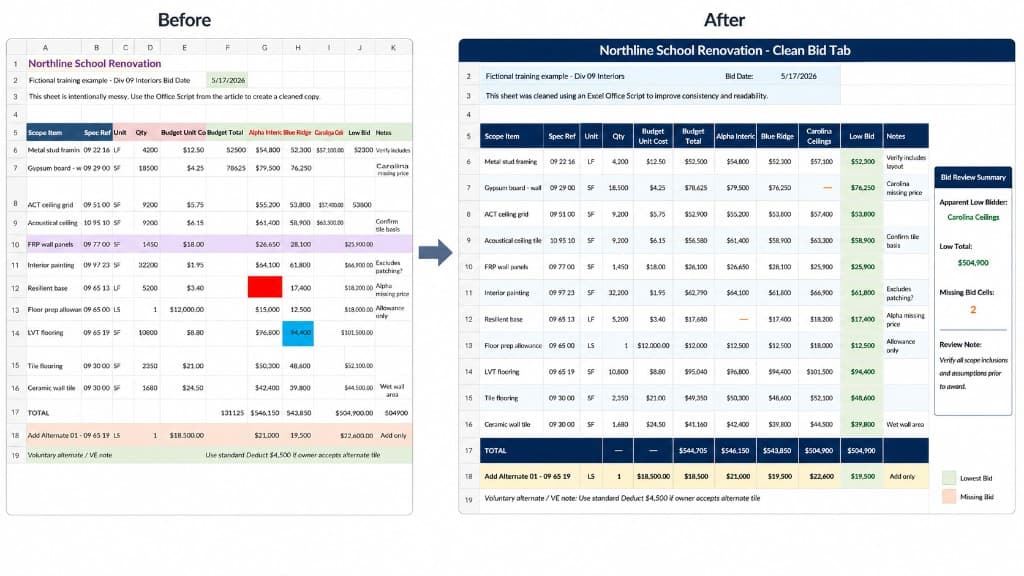
What the script does. It finds the sheet Bid Tab - Messy, copies it into a new sheet named Clean Bid Tab (and replaces an old Clean Bid Tab if one exists), then applies headers, borders, currency formats, low-bid highlighting, and a summary block. It does not edit the messy source tab. Missing bidder cells are filled with MISSING so they can be counted and styled.

Run this on a copy first. Double-check MISSING against true blanks, the COUNTIF / INDEX / MATCH formulas, and the dollar totals. This script formats and flags a sheet. It does not decide scope coverage, exclusions, qualifications, or award. That judgment stays with your team.

Step 4: Review the output

Switch to the new Clean Bid Tab sheet. Look at:

  • Headers in row 5 — readable, correct names.
  • Bid columns (G, H, I) — MISSING shown in soft orange, lowest bid in soft green.
  • Row formulas in column F (totals) and column J (low bid per row).
  • Summary block below the table — apparent low bidder, low total, and missing-cell count.

If anything looks off, that’s normal. The script is a starting point, not a finished company standard.

Step 5: Take the script into ChatGPT for changes (the Workshop)

Once Clean Bid Tab looks roughly right, treat ChatGPT like a shop bench. Copy the whole script out of the Automate editor, paste it back into ChatGPT, and ask for one small change at a time instead of re-describing the entire bid tab from scratch.

A few practical notes before you do this:

  • Use the latest coding model from your provider (for example ChatGPT’s current code-oriented tier, Claude’s latest Sonnet/Opus coding release, or Gemini’s latest code model). These are noticeably better at scripts than general chat defaults.
  • AI is non-deterministic. Ask the same question twice and you can get two slightly different scripts. That is normal. Read the code, run it on a copy, and judge by the output—not by how confident the answer sounds.
  • Expect a few iterations. Two to four passes is normal for a construction spreadsheet. If the first response breaks something, that does not mean the approach is wrong.

Example prompt: lighter headers and italic quantities

Say you want the table header row a bit softer than the dark navy, and you want Column D (Qty) italicized for readability. Paste your current working script into ChatGPT, then add a prompt like this:

Prompt
I have an Excel Office Script that cleans up a construction bid tab.

That script is attached below: [insert script to update]

Also the workbook it will be working in is attached. [update prompt to include the workbook from excel]

Please update the script so that:
1. The column header row (row 5, columns A through K) uses a lighter
   shade of blue instead of the current dark navy fill.
2. The values in Column D (Qty), rows 6 through 16, are italicized.

Keep the rest of the script the same unless a change is required.

Return the full updated Office Script as one code block so I can copy
and paste it into Excel for the web.

ChatGPT will usually touch the header fill (for example around A5:K5) and add a format pass on D6:D16. Replace the script in Automate with the full code it returns—do not paste a fragment in the middle unless you know exactly where it belongs.

Step 6: Test the revised script on a fresh copy

Every time you change the script, you want a clean starting point.

  1. Download the practice workbook again (or duplicate your original), so Bid Tab - Messy is in its original messy state.
  2. Open the fresh copy in Excel for the web → Automate.
  3. Replace your saved script with the updated code.
  4. Click Run and review Clean Bid Tab the same way you did in Step 4.

If the header color is too pale, or italics ran onto a row you did not want, reply to ChatGPT with one correction at a time: “Use #2D5A87 for the header fill” or “Italicize D6:D16 only, not the total row.” Small prompts, small diffs—same habit as redlining a spreadsheet before you send it to the field or the owner.

Step 7: Save and reuse the script

Once the script does what you want:

  • The script is already saved in Automate under the name you gave it. You can re-run it on any workbook that has a Bid Tab - Messy sheet (or whatever source name you used).
  • To use it on a real bid tab, either rename your source sheet to Bid Tab - Messy, or change the sourceSheetName value at the top of the script to match your tab.
  • You can also share the script with teammates inside your Microsoft 365 tenant from the Automate task pane.

Using this on your own spreadsheets

The practice workbook matches the script exactly. Real bid forms, punch lists, tracking logs, and analysis worksheets will not. When you point this at your own file, you will probably need ChatGPT to adjust:

  • Sheet name (sourceSheetName at the top of the script).
  • Header row and the address ranges (A5:K5, A5:K18, etc.).
  • Bid columns (the script assumes three bidders in columns G, H, I).
  • Summary block location.

If you want your AI assistant to draft a new version from scratch, attach the spreadsheet you are automating to the first prompt (when your provider supports file upload). That gives the model real headers, column layout, and sample rows instead of a guess from text alone.

Also give it a tight prompt: goal in one sentence, where the data lives (sheet name, header row, which columns are scope vs. bid), rules you want (formatting, missing-bid detection, totals), and an explicit note that you will run it on a copy first and want no external network calls. A short example of your header row still helps when you cannot attach a file.

Closing

ChatGPT did not replace Excel on construction projects. It can generate code that eliminates the “whack a mole” game of reviewing a product for hidden mistakes and then the manual formatting that follows. Keep the file copy-first, verify formulas before you rely on them, and expect a few iterations. The script formats and flags a sheet. You still make the call on what the numbers mean.

Want more insights like this?

Practical automation insights, once a month. No spam.

Subscribe to Newsletter